
Haradon can also be played with a controller: an Xbox controller on PC, a Bluetooth controller on Android, and the remote on Android TV. This tutorial gives the full button map, as the game shows it.
Connecting your controller
- Plug in or pair your controller, then start the game: the on-screen controls show your controller's buttons.
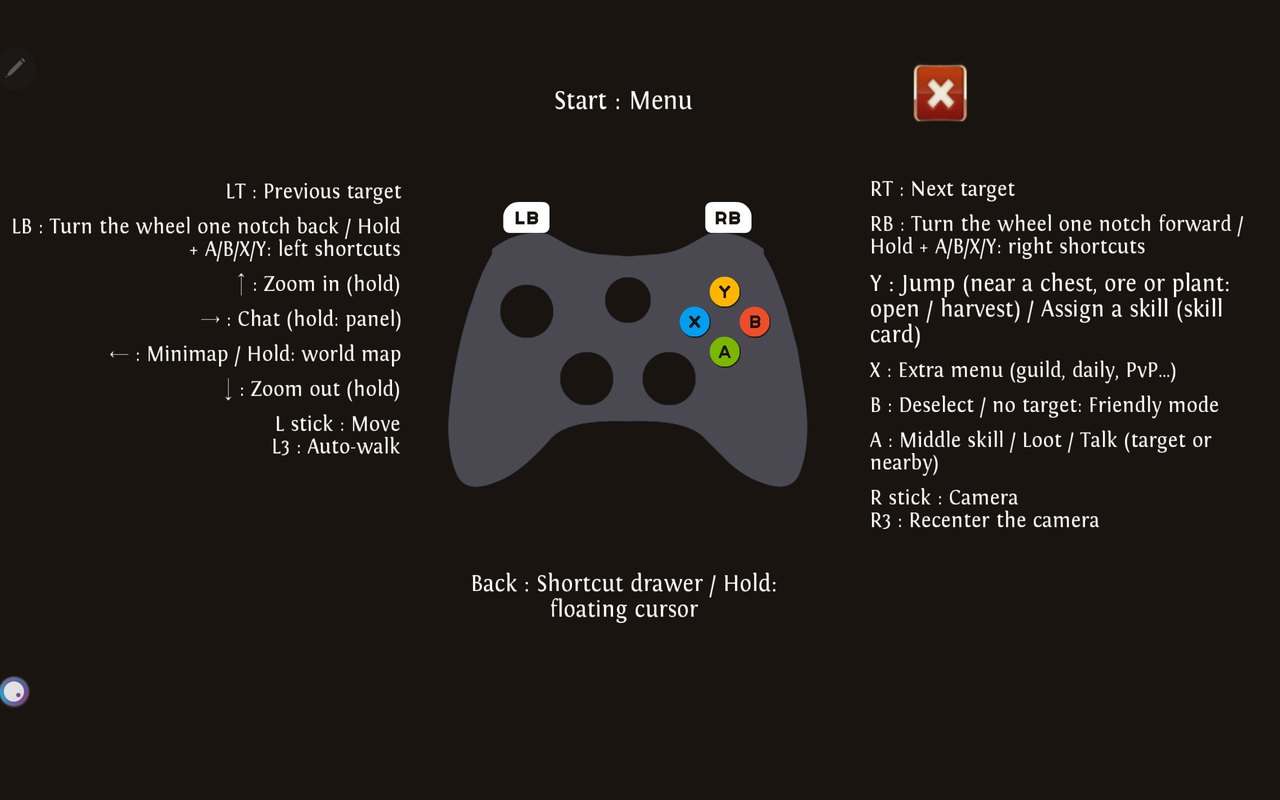
- In the Options of the login screen: Controller (Auto), Button icons (the style of the button icons), Controls size (normal, large, very large) and Controller help, which shows the map below.
In game
| Button | Action |
|---|---|
| Left stick | move |
| Left stick click (L3) | auto-run |
| Right stick | turn the camera |
| Right stick click (R3) | recenter the camera |
| A | middle spell / pick up / talk (depending on the target or what's nearby) |
| B | deselect; with no target: Friendly mode |
| X | extra menu (guild, daily, PVP…) |
| Y | jump; near a chest, an ore vein or a plant: open / gather; on a spell card: put it away |
| LB / RB | turn the spell wheel by one step; held + A/B/X/Y: left / right shortcuts |
| LT / RT | previous target / next target |
| D-pad up / down | zoom in / out (hold) |
| D-pad left | minimap; hold: big map |
| D-pad right | chat; hold: chat panel |
| Start | menu |
| Back (View) | shortcut drawer; hold: floating cursor |
Friendly mode: with no target, B switches LT/RT to Friendly mode: they only target nearby players and NPCs, handy in town.
In menus
- The D-pad moves the selection (a glowing frame), A confirms, B closes or goes back.
- The floating cursor (Back held) lets you point at any spot on the screen.
Frequently asked questions
- My controller isn't detected. Unplug it and plug it back in, or pair it again, with the game running; check that Controller is set to Auto in the Options.
- Can I mix controller and touch screen? Yes, touch always works.