

Is your device heating up, is your battery draining, or do you want the sharpest picture instead? Three settings help you: the resolution, the frames-per-second limit and the chat preview. This tutorial shows you where to find them, with in-game screenshots.
Where to find them
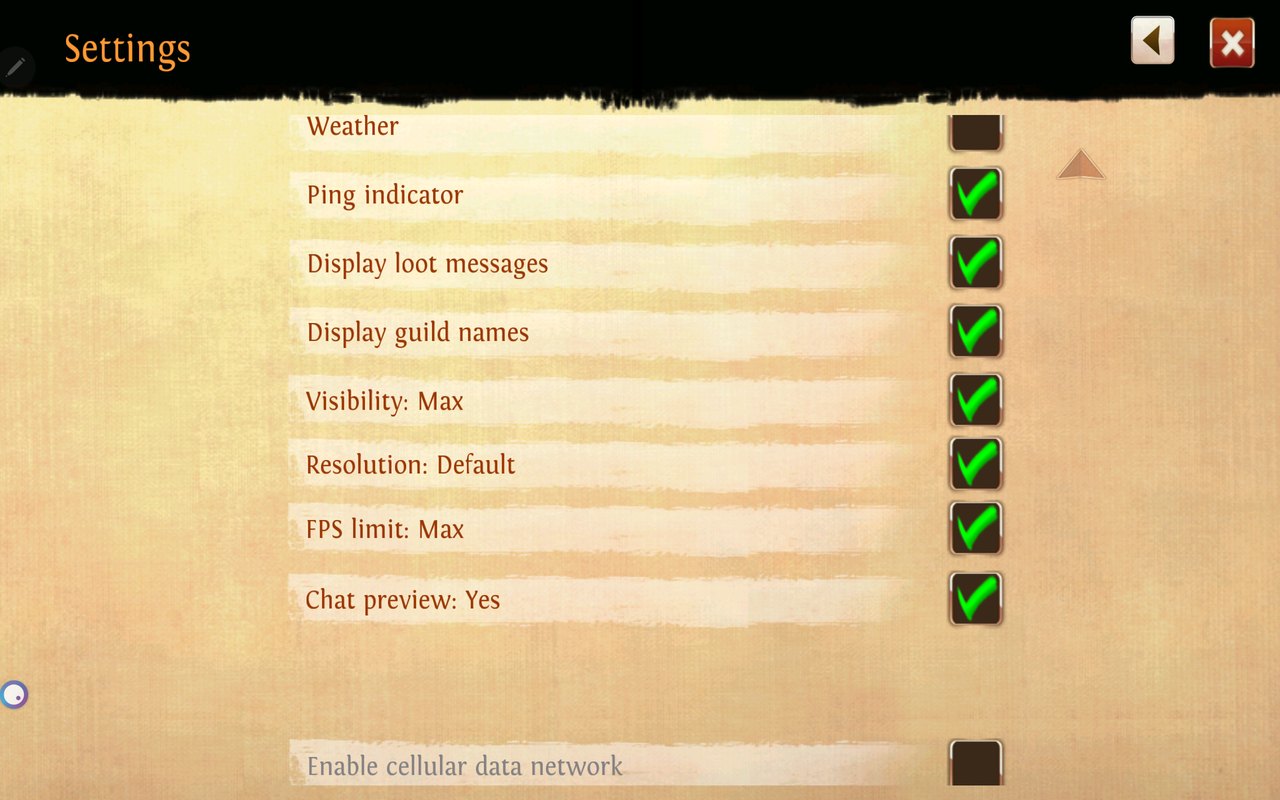
- On the login screen: touch the gear wheel at the bottom left, then Settings; scroll down to Game Settings. The three lines are right below Visibility.
- In game: the same lines are in the Options, Game Settings.
The settings
Resolution
| Choice | Effect |
|---|---|
| Default | your screen's resolution (720p on an Android TV) |
| Max | your screen's resolution |
| 1080p, 720p, 540p | the picture is rendered smaller then scaled up: less heat, longer battery life |
The resolution never goes above your screen's. The change applies immediately.
Frames-per-second limit (FPS)
Max, 60, 45 or 30 frames per second (FPS limit). 30 saves a lot of battery; Max gives the smoothest animation your device allows.
Chat preview
When someone speaks while your chat is closed, s small window shows the message at the bottom of the screen for 5 seconds. Set Chat preview to No to stop seeing it.
Frequently asked questions
- The game looks blurry at 540p. That's normal: the picture is rendered smaller. Go back up to 720p or 1080p if your device can handle it.
- Is my setting kept? Yes, it is saved on your device.